

By default, replies to emails sent from SATHI go to the primary email address on your account. You can assign a specific reply-to address to each email template instead — a team member's inbox or any custom address. This means replies land where they're needed without manual forwarding.
What You Can Do With Reply-To Emails
Assign a different reply-to email per template
Route ambassador replies to the right team member
Keep a shared inbox free of replies meant for one person

How to Set a Reply-To Email
Go to Settings
Navigate to General > Email Templates
Open any System Template or Custom Template (e.g., Gamification – Reward is Live)
Click the Edit icon to open the template
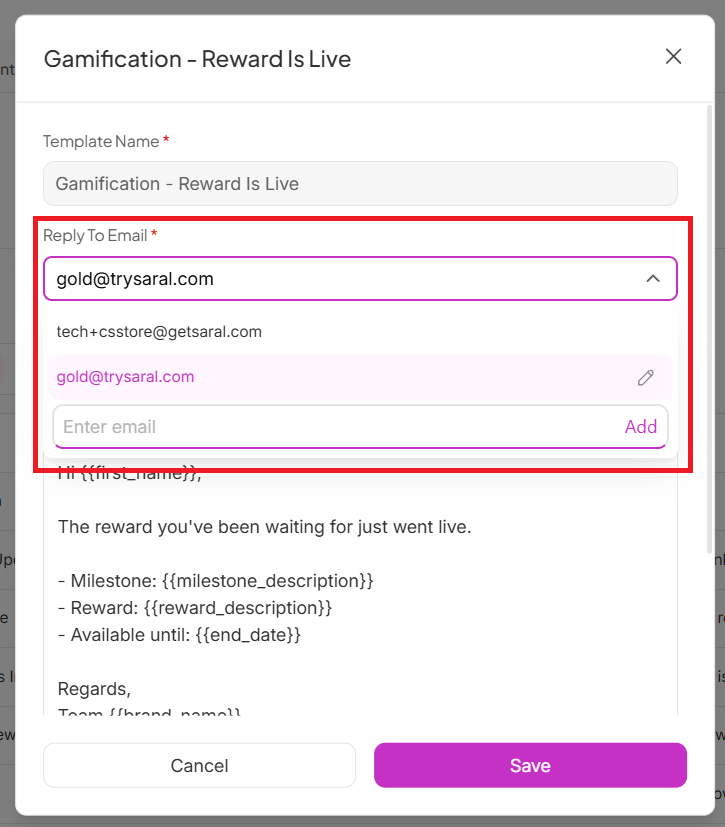
Find Reply to Email
Click Add Custom Email
Select or enter the email address replies should go to
Click Save
What Happens When You Send an Email
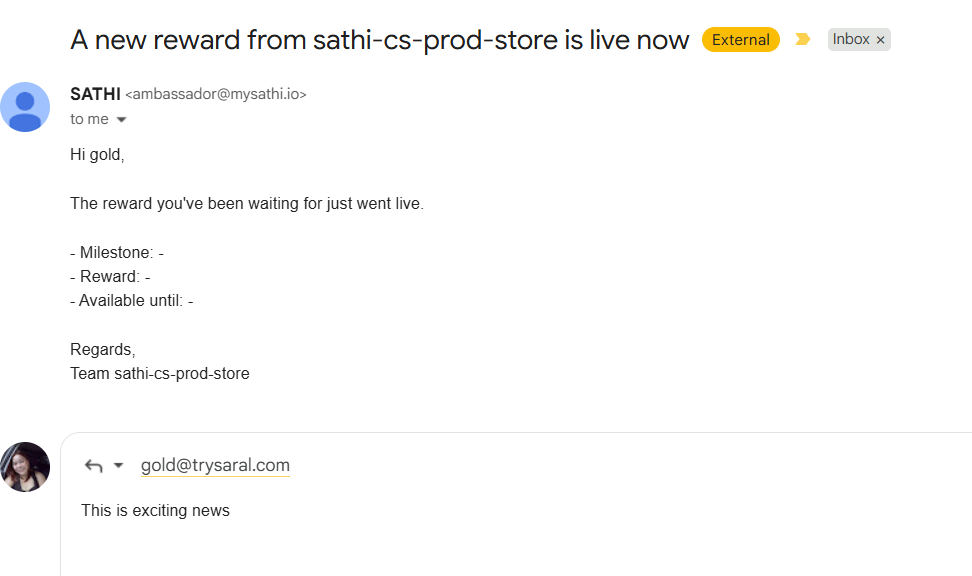
The ambassador receives the email from [email protected]. When they hit reply, the response goes directly to the reply-to address set on that template.
Why This Is Important
Without a reply-to address, every ambassador reply funnels into one inbox, which slows down response times and creates confusion over who owns the conversation. Setting a reply-to email per template ensures replies reach the team member responsible for that specific communication, so nothing gets missed or misrouted.
Still need help?
Reach out anytime to our Support team using the button at the bottom-right corner of your dashboard, or email us at [email protected].