Ambassador links and discount codes don't capture every sale an ambassador influences. A Post-Purchase Survey asks customers how they heard about your brand directly on the thank you page, giving you a fuller picture of what's actually driving sales beyond what click and code tracking can show.
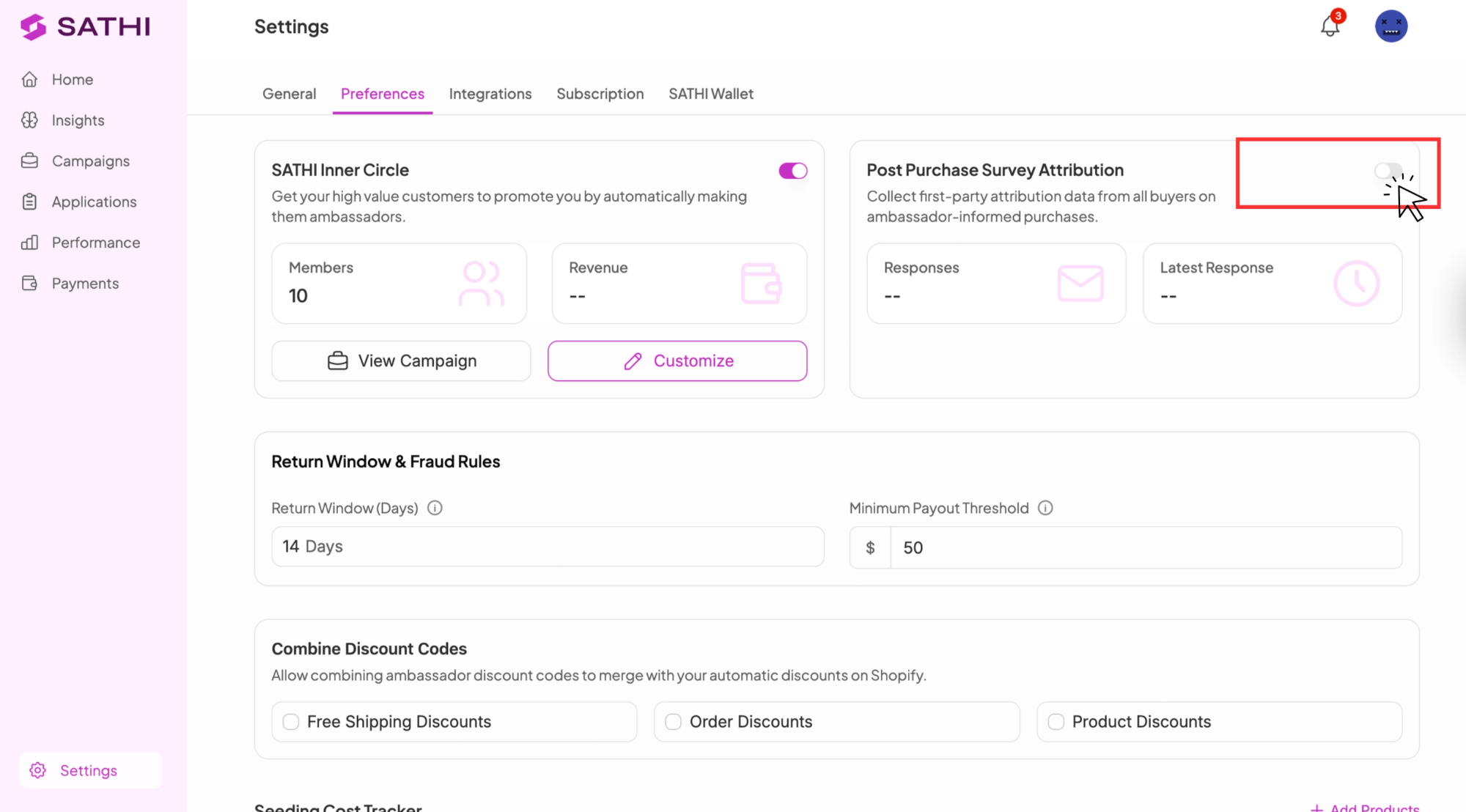
Go to Settings from the bottom of the left sidebar, then open the Preferences tab. Find Post Purchase Survey Attribution and toggle it on.
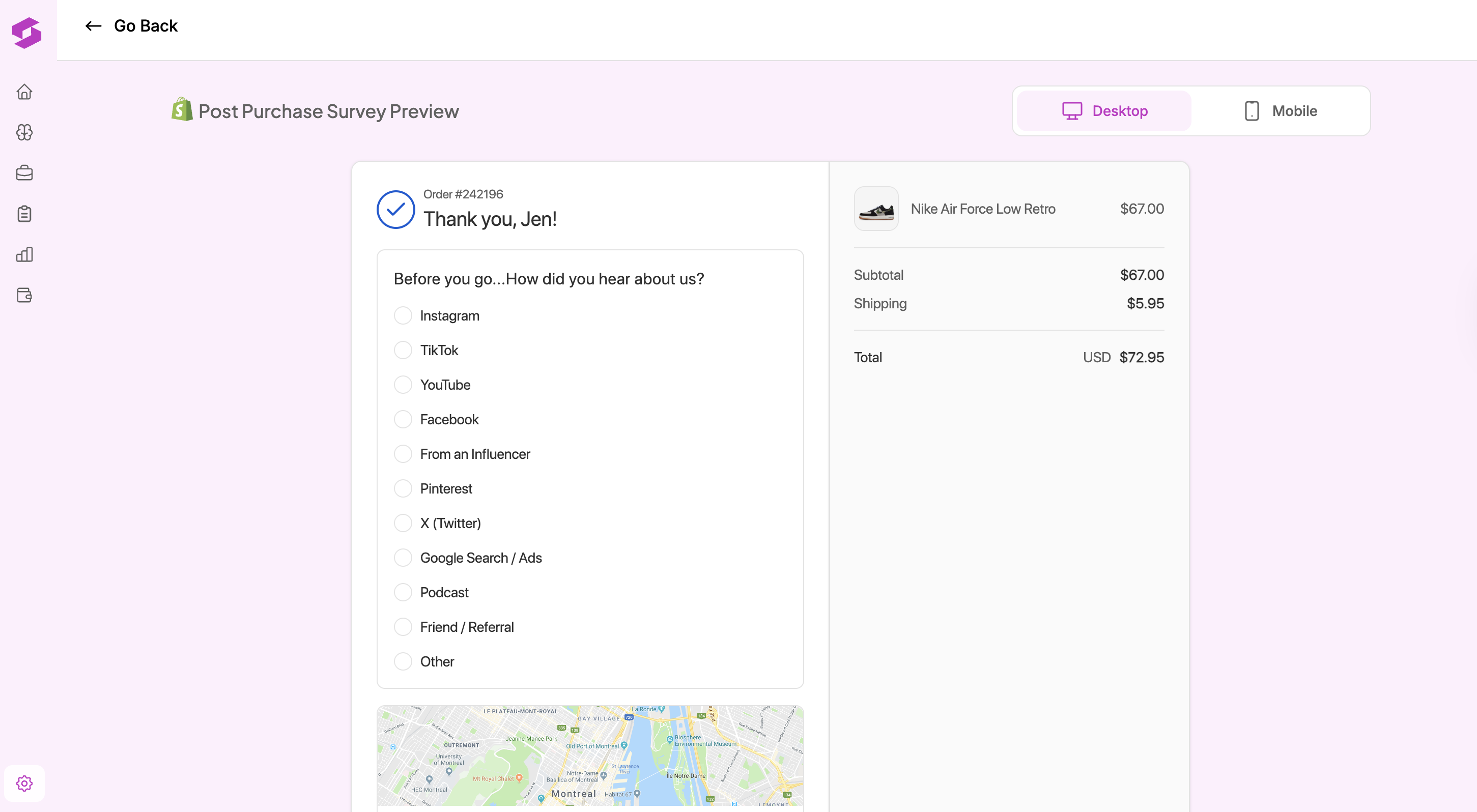
Before making it live, click Preview Survey to see exactly how it looks on desktop and mobile.
The survey appears on the customer's thank you page after every purchase. Customers can:
Select how they heard about the brand from the options shown
Search for a specific ambassador or creator by name and select them directly, even if they never clicked a link or used a discount code

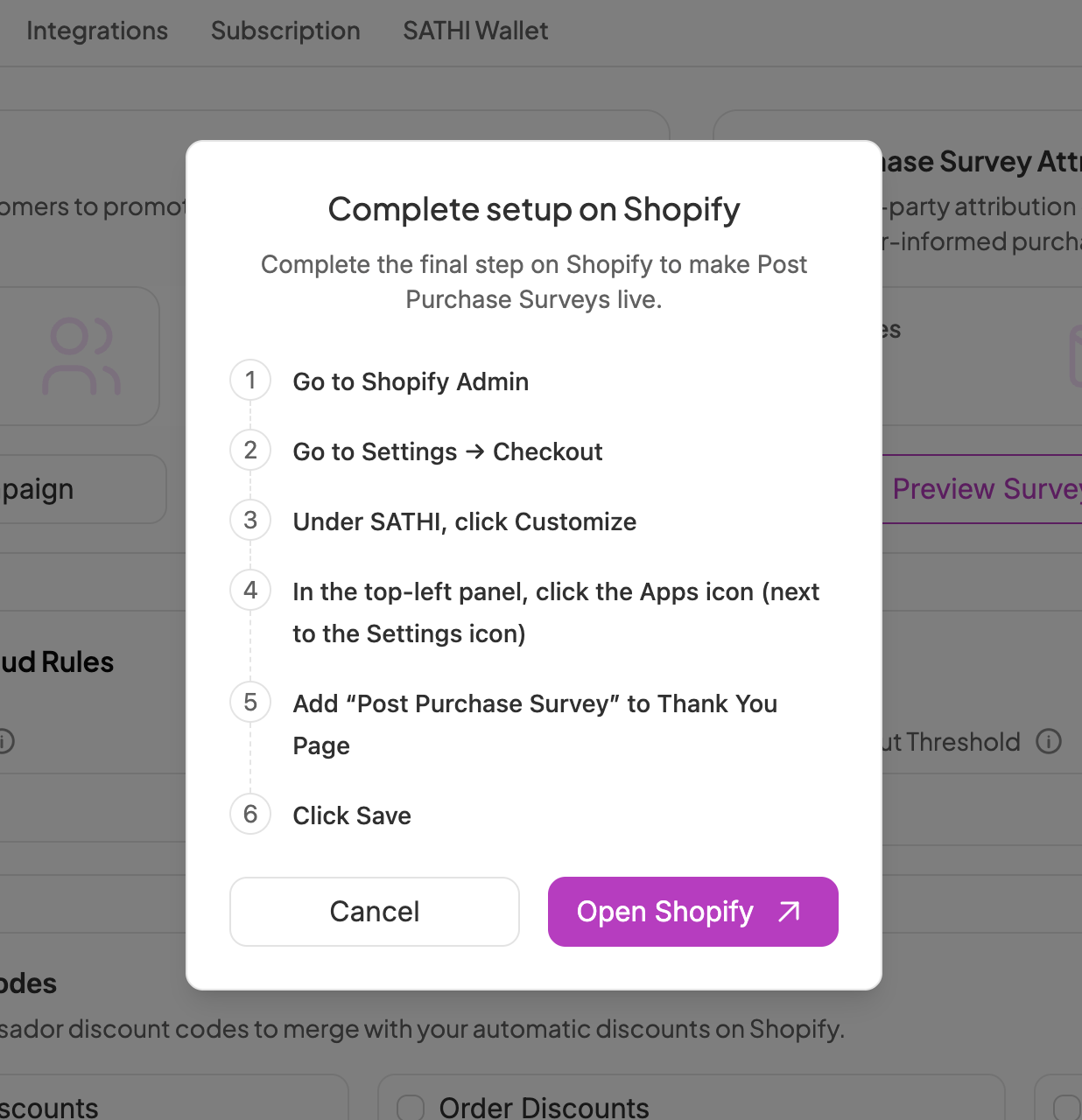
Once you're happy with the preview, click Complete Setup to make the survey live on your store.
Go to your Shopify Admin
Go to Settings → Checkout
Under SATHI, click Customize
In the top-left panel, click the Apps icon (next to the Settings icon)
Find Post Purchase Survey and click the + icon next to it
Select Add to Thank You Page
Click Save
Running Inner Circle and the Post-Purchase Survey Together
Both features can be live on your thank you page at the same time. The order in which they appear is controlled from your Shopify checkout settings, where you can drag to reorder them.

Back on the Preferences tab, the Post-Purchase Survey card shows:
Total Responses: How many customers have responded
Latest Response: When the last response came in
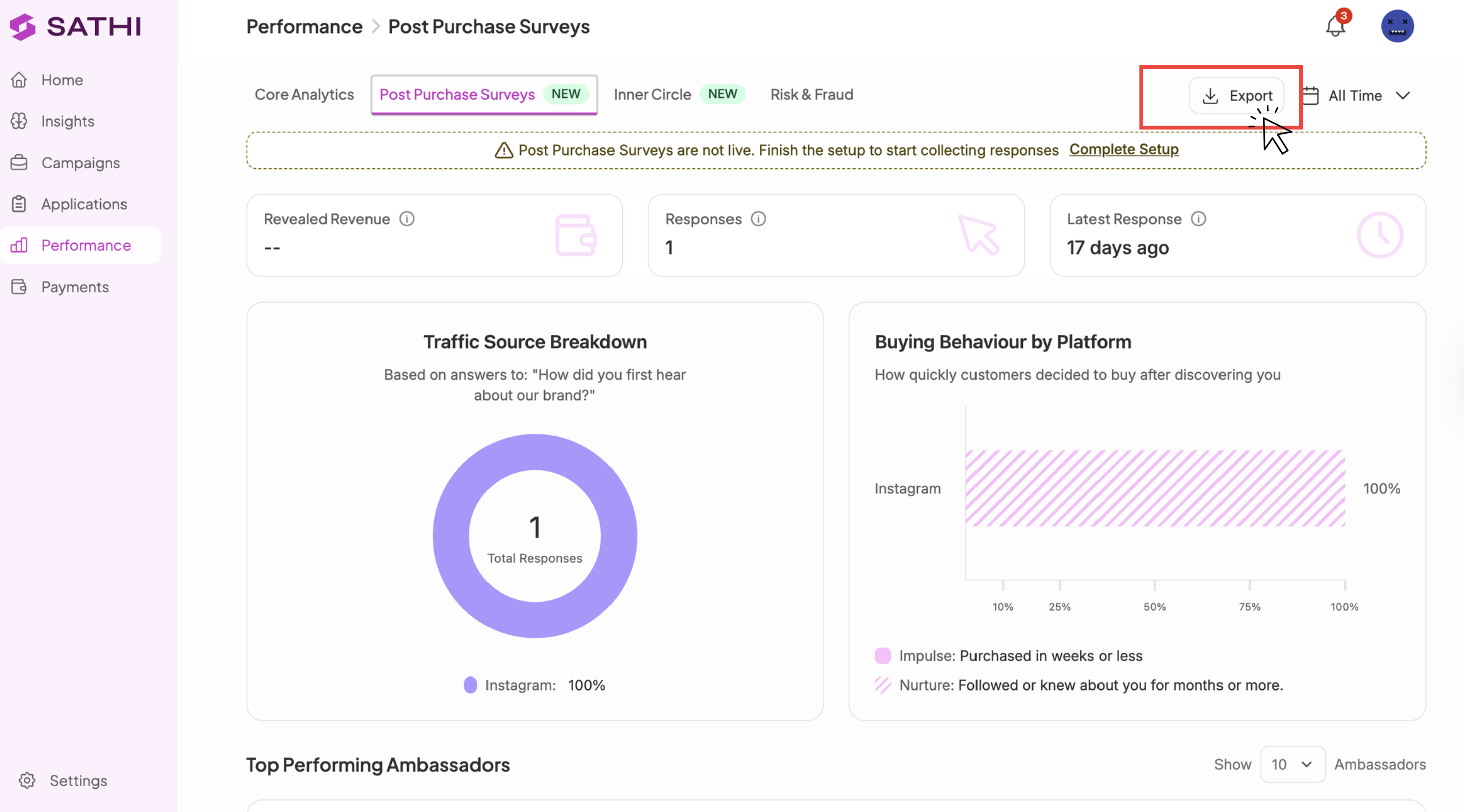
To export responses, go to Performance → Post Purchase Surveys tab and click Export in the top right.
See the Help Center articles on setting up ambassador payments and how fraud detection works in SATHI for next steps.
Links and discount codes only capture attribution when a customer actively clicks a link or enters a code. The Post-Purchase Survey closes that gap by asking directly, so ambassadors get credit for word-of-mouth influence that would otherwise go completely untracked, and you get a more accurate view of which ambassadors are actually driving sales.
Still need help?
Reach out anytime to our Support team using the button at the bottom-right corner of your dashboard, or email us at [email protected].