Your SATHI Wallet is the balance SATHI draws from every time a payout goes out to an ambassador. Before you can pay commissions, you need to set it up by connecting it to Tremendous, the payment platform SATHI uses to handle global payouts.
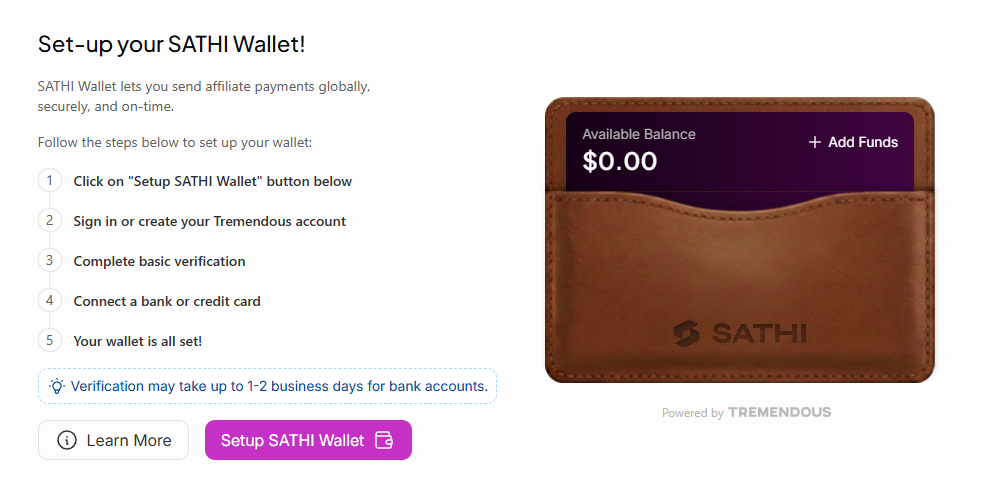
You can start setup from two places:
Payments in the left sidebar: click Set up SATHI Wallet on the empty state screen
Settings: open the SATHI Wallet tab and click Setup SATHI Wallet
Either way, a modal walks you through the process.
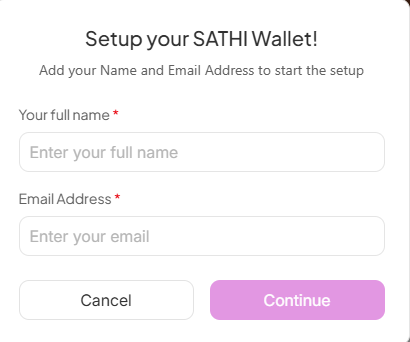
After clicking Setup SATHI Wallet → Get Started, follow the steps on screen:
Add your name and email to start the setup

You'll be redirected to Tremendous to create or sign in to your account:
Type in your email address (the same one entered in the previous step)
Wait to receive an email from Tremendous with a magic link to continue
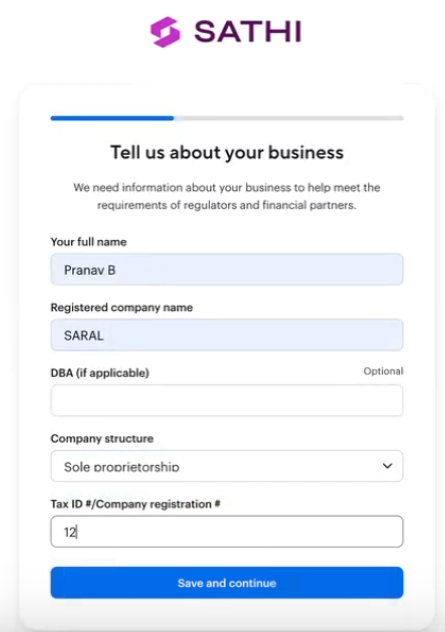
Share the following business details on Tremendous to complete verification:
Full Name
Registered Company Name
DBA (if applicable)
Company Structure
Tax ID # / Company registration #
Address
Country
Social media profile
Website or social media URL (include the full URL, e.g. https://www.example.com)
Wait 1–2 business days for the account to be approved.
Once verified, add a payment method (bank account or credit card)
Add funds to your SATHI Wallet
Start sending rewards and payouts to your ambassadors
Note: To link an existing Tremendous account, enter the email address linked to that account in Step 1.
After setup, your wallet balance is visible in the SATHI Wallet tab under Settings. From there you can add funds manually at any time, or enable Auto-Refill to top up automatically when your balance runs low, so payouts never get interrupted.
For more on managing your wallet balance, see the Help Center article on payments with Tremendous.
Every payout SATHI sends draws from this wallet, so getting it set up correctly the first time avoids delays down the line. Verification with Tremendous takes a day or two, but once approved, adding funds and enabling Auto-Refill means payouts run on their own from that point forward, with no manual step needed each time you want to pay ambassadors.
Still need help?
Reach out anytime to our Support team using the button at the bottom-right corner of your dashboard, or email us at [email protected].