

How to Create an Affiliate Application Form
An application form is a public page where interested people can apply to join your affiliate program. You review who applies and approve who gets in. Here's how to set one up.
Step 1 — Create a new form
Go to Applications in the left sidebar and click + Create New in the top right.

A pop-up asking for application form details will open.

Fill in:
Form name: internal, just for you
Campaign: select which campaign approved ambassadors will be added to
Approve applications with: choose what gets generated when you approve someone:
Affiliate Link & Discount Code: both are created automatically
Only Affiliate Link: no discount code
Only Free Product: a product from your Shopify is sent to the ambassador on approval
Click Create Form.
Step 2 — Build your Landing Page
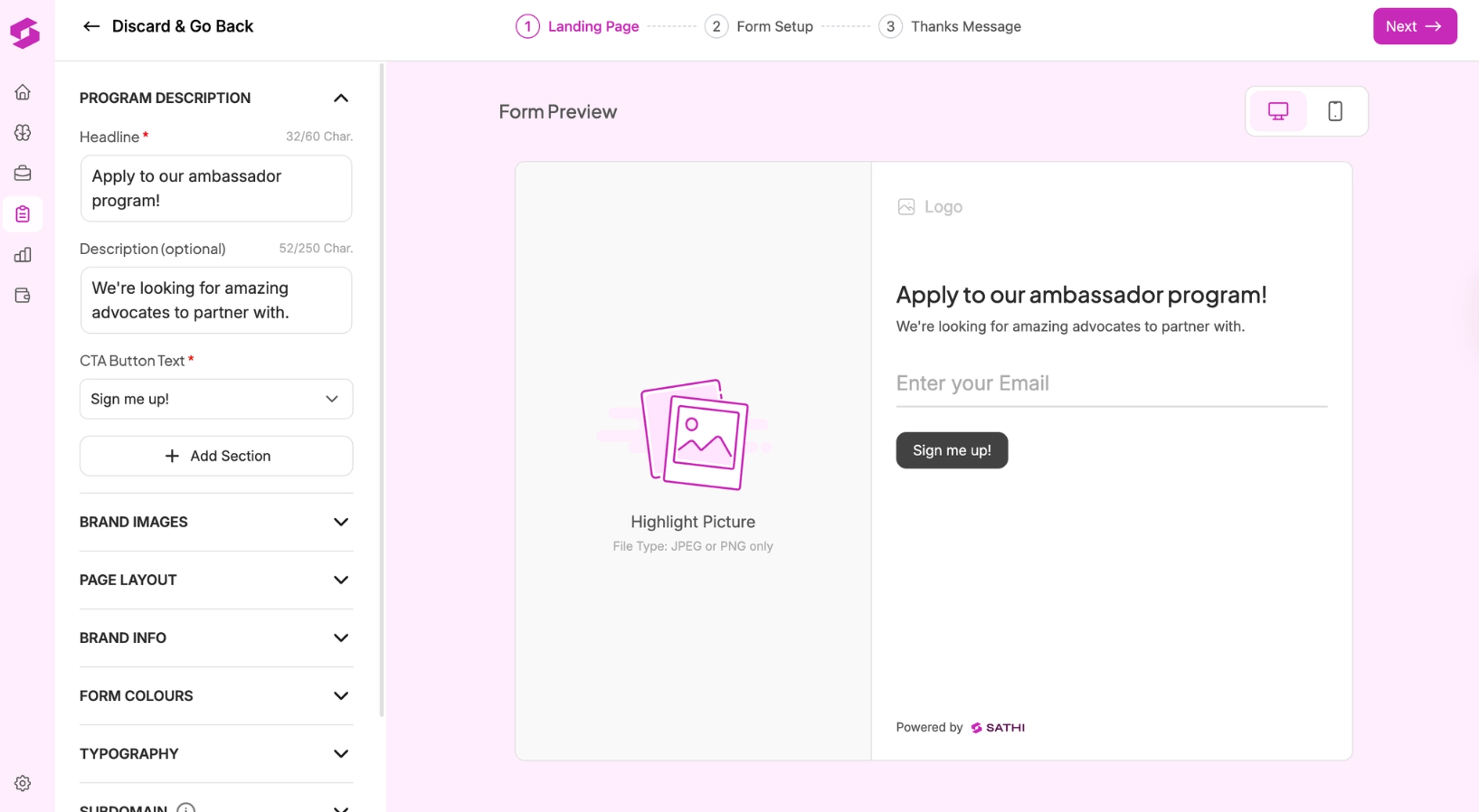
This is the first page applicants see. You can customise everything here — a live preview updates on the right as you edit.
Program Description
Add a headline and description to tell people what your program is about
Customise the CTA button text (e.g. "Sign me up!", "Apply Now")
Add extra sections if needed
Brand Images
Upload your brand logo
Add a highlight picture (JPEG or PNG)
Add a favicon (optional)
Page Layout
Choose how the form sits on desktop — Left, Right, Top, or Center
Choose mobile layout — Top or Center
Brand Info
Enter your brand name and website
Form Colours & Typography
Customise background, headline, description, and button colours
Select header and body fonts
Subdomain
Set a custom suffix for your form URL
Terms and Conditions
Toggle on if you want applicants to agree to your T&Cs before submitting
Once you're happy with the landing page, click Next.
Step 3 — Set up your Form

This is where you decide what information you collect from applicants.
Personal Information
Toggle on First Name (on by default)
Social Media Links
Toggle on the platforms you want to collect — Instagram, TikTok, YouTube
Add more platforms with + Add Platform
General Questions
Add custom questions (short answer or long answer)
Mark questions as required or optional
Reorder, edit, or delete questions anytime
Shipping Gift Options (optional)
Toggle on if you want ambassadors to select a product during application
Choose whether they can select multiple products
Select which products are available
Shipping address is collected automatically when this is enabled
Once done, click Next.
Step 4 — Customise the Thank You Message

This is what applicants see after they submit their application.
Edit the success headline and description
Customise button colours
Add a background image
Set up a thank-you email if needed
Once you're done, click Save & Publish in the top right.
Step 5 — Share your form

After publishing, SATHI shows you a Sharing Options modal with three ways to add the form:
Shopify Full Page (Recommended) Makes the form a full page on your Shopify store. Click Enable Shopify Form Hosting, then set a short URL suffix for your form. Once enabled, publish directly to your store with one click.
Embed via iFrame Copy the iFrame code and paste it into any page on your website. Best for embedding the form within an existing page.
External Link Copy the direct link to your form and share it anywhere — your email list, Instagram bio, TikTok bio, website footer, or navbar.
What happens after someone applies?
Applications land in your Applications tab under Pending. You can review, approve, or reject from there. Approved ambassadors are automatically added to the campaign you selected in Step 1.
What's next?
👉 How to Set Up Milestone Rewards and Gamification
👉 Getting Started with SATHI
Need help? Reach out to us at [email protected] — we're here.