

How to Set Up Inner Circle
Inner Circle turns your best customers into ambassadors automatically. The moment a qualifying customer completes a purchase, they see an invite on the thank you page — with their personal referral link and discount code ready to share. No manual work on your end.
Step 1 — Enable Inner Circle in SATHI
Go to Settings from the bottom of the left sidebar, then open the Preferences tab. Find SATHI Inner Circle and toggle it on.

A setup modal will appear.
Step 2 — Choose who gets invited
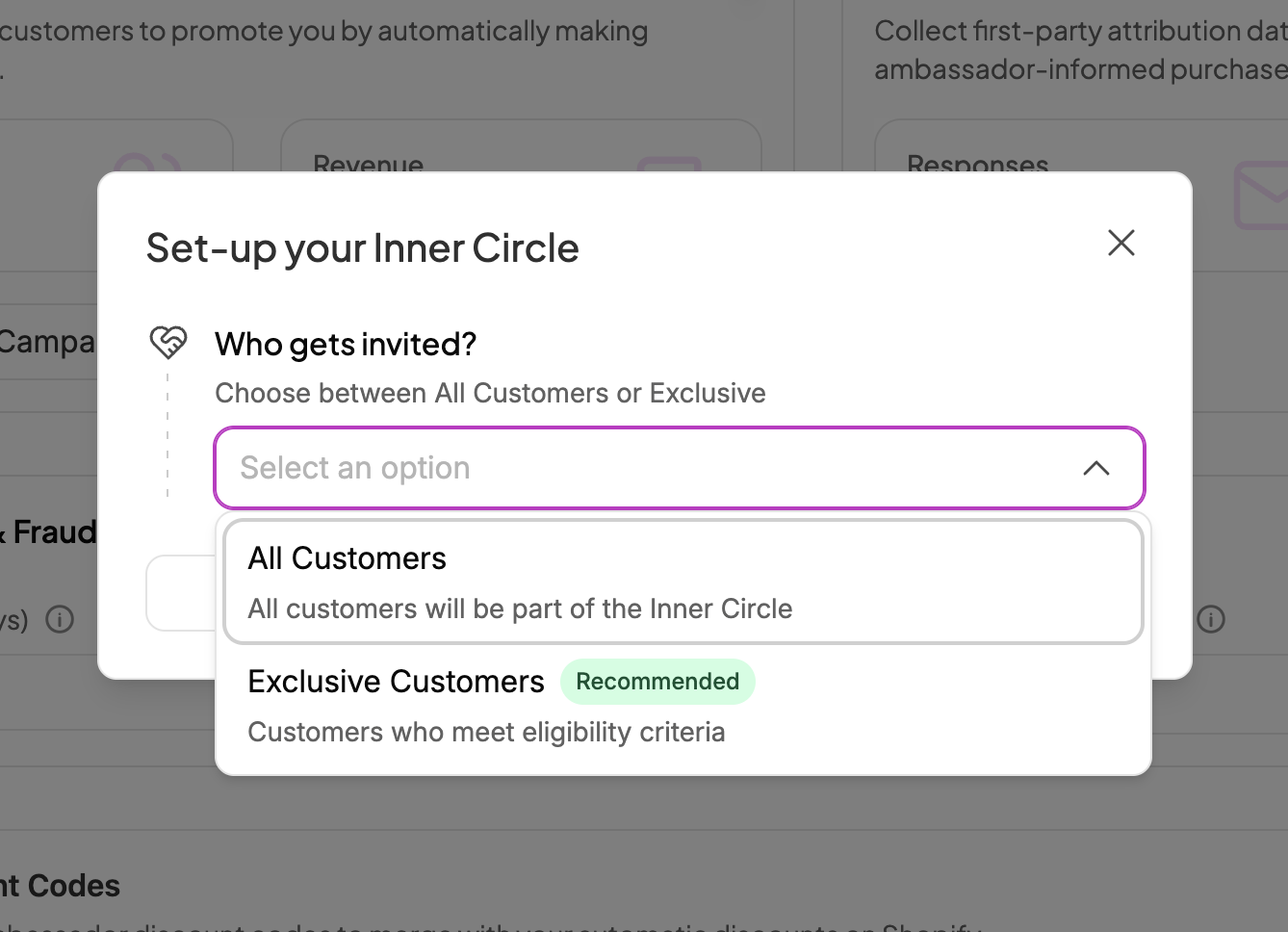
Who gets invited? — choose between:
All Customers — every customer who completes a purchase gets an invite
Exclusive Customers — only customers who meet a specific eligibility criteria
If you select Exclusive Customers, you'll need to set an Eligibility Criteria:
Repeat Customers — customers who have bought from you more than once
Order value above $X — customers whose order crosses a set amount
LTV of customer above $X — customers whose lifetime spend exceeds a set amount
Customers from affiliate link — customers who came through an affiliate's referral link
Enter the dollar amount for whichever criteria you select.
Step 3 — Set what they get
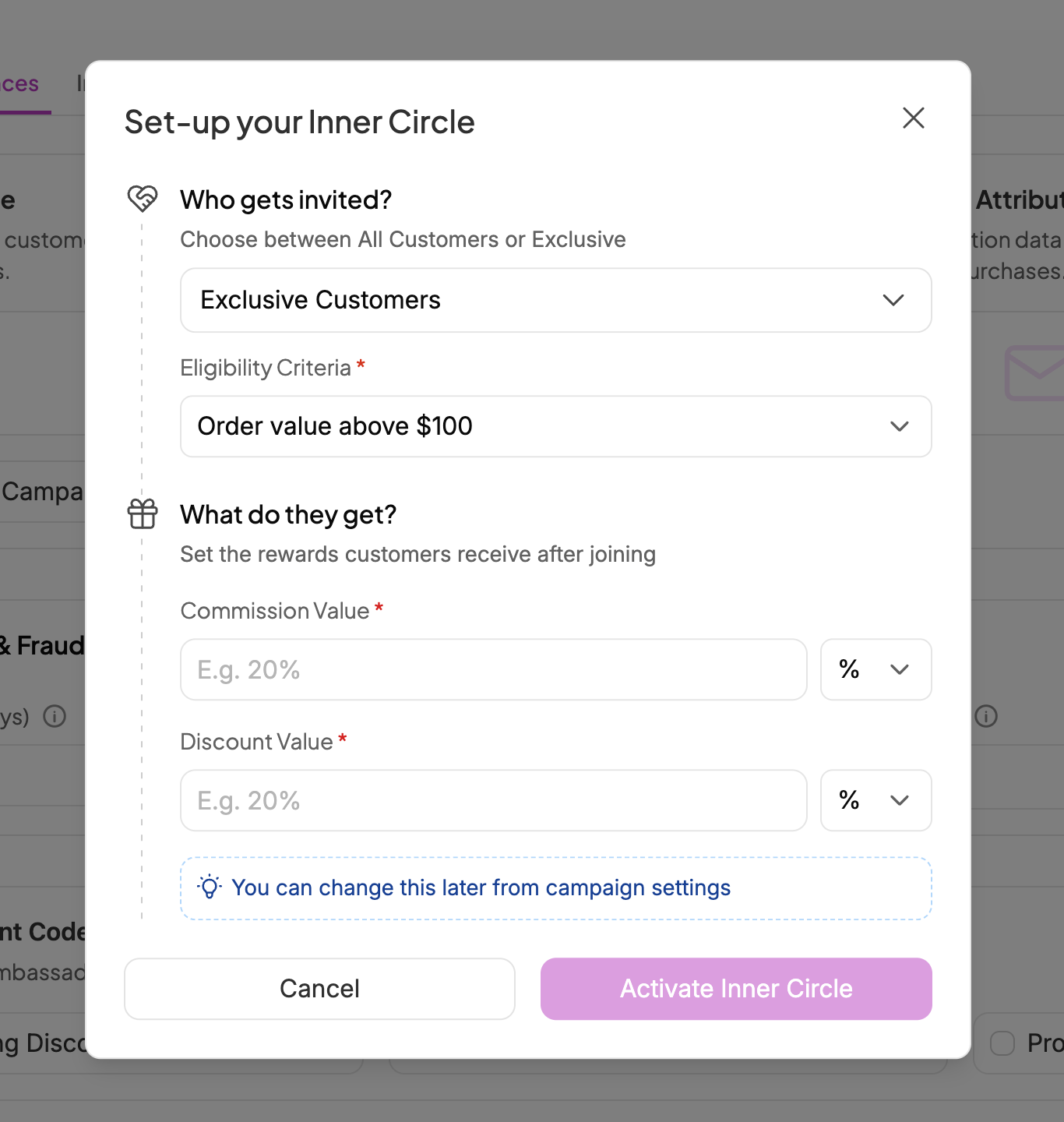
Scroll down to What do they get? and set:
Commission Value — how much they earn when someone buys through their link (percentage or flat)
Discount Value — the discount their referral link gives to the buyer (percentage or flat)
You can change these later from your campaign settings.
Click Activate Inner Circle.
Step 4 — Customise the invite and confirmation pages

Once activated, SATHI creates an Inner Circle campaign automatically in your Campaigns page. You can view all the customers who have become an Inner Circle member here. In Settings, Preferences you can preview and edit how Inner Circle invite looks on the checkout page.
There are two pages to customise:
Invite Page — what customers see before they accept
Edit the header, description, and CTA button text
Confirmation Page — what they see after they accept, showing their referral link and discount code
Edit the header and description
Preview shows their link, discount code, and social sharing buttons
Click Save when done.
Step 5 — Enable Inner Circle on your Shopify store
Inner Circle won't show up on your checkout page until you enable it in Shopify. Watch Video.
Here's are the steps:
Go to your Shopify Admin
Click Settings → Checkout
Click SATHI app → Customize
In the top left panel, click the Apps icon (next to the settings icon)
Find Inner Circle and click the + icon next to it
Select Add to Thank You Page
Click Save
Once saved, customers who qualify will start seeing the Inner Circle invite on their order confirmation page after every purchase.
What's next?
👉 How to Set Up a Post-Purchase Survey
👉 Getting Started with SATHI
Need help? Reach out to us at [email protected] — we're here.